Showing posts sorted by relevance for query Android. Sort by date Show all posts

Friday, 31 July 2015

How to Connect to a VPN on Android [solved]

android-vpn-activated

Use a VPN with TunnelBear (The Easiest Option):

Using TunnelBear for our VPN it’s very simple, works really well, they have a free plan that’s great for occasional use, and they have unlimited plans that are really cheap. There are a lot of other options, but we highly recommend TunnelBear.

OpenVPN Networks & VPN Apps:

Android does not include integrated support for OpenVPN servers. If you use an OpenVPN network, you will need to install a third-party app. OpenVPN Connect, OpenVPN’s official app, works on Android 4.0 and higher and does not require root. To connect to an OpenVPN network on a device running Android 2.3 or older, you will need to root your device.
openvpn-for-android
Depending on the VPN you are using, you may need a dedicated VPN app instead of the VPN support integrated into Android. For example, TunnelBear offers an Android app that handles TunnelBear VPN connections.
tunnelbear-on-android

Integrated VPN Support:

Android has integrated support for PPTP and L2TP VPNs. You can connect to these types of VPNs without installing any third-party apps.
To connect to a compatible VPN, open the Settings app and tap More under Wireless & networks. (On Android 2.3, tap Wireless & networks.)
more-wireless-and-networks-settings
Tap the VPN option on the Wireless & networks screen. (On Android 2.3, tap VPN Settings.)
android-vpn-settings
Tap the + button and provide the VPN’s details. Enter a name to help you remember which VPN is which into the Name field, select the type of VPN server you’re connecting to, and enter the VPN server’s address (either an address like vpn.example.com or a numerical IP address).
android-create-vpn-profile
Tap the VPN to connect once you have set it up. You can have multiple VPN servers configured and switch between them from the VPN screen.
You will need the username and password your VPN requires when you connect. However, you can save this account information for next time.
android-vpn-credentials
While connected to a VPN, you will see a persistent “VPN activated” notification in your notifications drawer. To disconnect, tap the notification and tap Disconnect.
android-vpn-activated

Always-On VPN Mode:

Android 4.2 includes the option to enable always-on VPN mode. When this option is enabled, Android will never allow data to be sent except over the VPN. This can be useful if you are using public Wi-Fi and want to ensure your VPN is always used.
To enable this option, you must first connect to a VPN and save your account information. You will then find the option under the menu button.
android-always-on-vpn
Again, this feature is only offered in Android 4.2, so you won’t see it if your smart-phone or tablet uses an older version of Android.

Friday, 22 January 2016

Android N is Nutella or Nougat? Features Revealed...

Following the trend of naming Android updates with desserts by alphabetical order, Google’s Android N is going to be the successor to Android Marshmallow.
Android enthusiasts are fascinating over what name the ‘N’ will stand for even though Android M has not been updated by a lot of users. If one has to go by the rumors, the name is likely to be Nutella and here is the list of features and changes that might come with it.
The first feature that Android N is rumored to have is Multi-Window feature. Andrew Bowers from Google said that “we’d spoil the surprise of N if we shared all of them. Split screen is in the works!” Currently, it is said that multi-window is a “highly experimental” feature in Marshmallow, but Google is working on improving it and it will be officially released, it will be pushed to the Android tablets. If this happens, not only will it be useful for larger Android devices, but also pit against Apple’s iPad and their new software features.
The second feature might be a New Messaging Application, but it’s unclear whether or not this means that Hangouts will be pushed aside in order to make room for “Messaging”, the application which already reached India and parts of Africa and it’s competing against WhatsApp and Facebook Messenger. The Wall Street Journal has reported a number of times that this “new” messaging app would be smarter and more like a blending of Hangouts and Google Now, with answers available for whatever people ask it.
The third and most important change will affect Chrome OS, as it has been rumoured that the two operating systems will become one with Chrome folded into Android. This is something Google has apparently been working on for a long time and, while it has recently made some progress, the single OS isn’t expected to be ready until 2017, making it more likely that if any Android OS is to kill off Chrome OS it will be Android 8.0 “O”. For now the company has confirmed that both operating systems will continue to exist.
But Google wants to do more than put Android on more devices, Lockheimer revealed during his Fast Company interview. Google wants smart Android devices to talk to each other better in order to offer new features that right now aren’t possible. In terms of actual new features in Android N it’s a bit too early too tell, especially given that most Android users are still waiting for the Marshmallow upgrade. However, we will continue to update this article until Android 7.0 N’s release, including new rumours and information as we hear it.
Android N is expected to get its first outing at Google I/O 2016, which has now been confirmed to run between May 18, 2016 to May 20, 2016. Google will offer an Android N Developer Preview, which you will be able to install on its 2016 line of Nexus devices.

Saturday, 18 July 2015

Microsoft’s Personal Assistant for Windows, Cortana for Android smartphones leaked!

Cortana, Microsoft's digital assistant to come to Android and iOS devices
It is not secret that Microsoft was working on a Android and iOS version of its personal assistant App, Cortana. Because in April, Microsoft had announced that the personal assistant will be making its way to Android and iOS. But Microsoft would like to have had a official launch of Cortana for Android. Instead all it had on its hands was a leaked version of Cortana for Android.
Cortana on Android has just been leaked on the internet.  According to Microsoft officials, the personal assistant was supposed to come to Android later this month, however, it has just been leaked and it is fully functional.
Just like the Windows 8.1 and 10 version, Cortana on Android comes with all the features which are available on Windows 10. You can set reminders, check for weather, sport results, ask Cortana to tell you some jokes, etc. Here are some screenshots of Cortana running on Android:
Microsoft's Personal Assistant for Windows, Cortana for Android smartphones gets leaked, APK download link

You also get access to your Notebook, which allows you to adjust exactly what information Cortana knows about you by adding or deleting details about you and your life.
Microsoft's Personal Assistant for Windows, Cortana for Android smartphones gets leaked, APK download link
It would be really interesting to see how Android users take to Cortana and how Cortana fares on non Windows platforms. It already faces stiff competition from Apple’s Siri for iPhone/iPad and iPod Touch. Siri has acted as some sort of industry benchmark for personal assistant though Google’s Now for Android fares equally good on Android platform.
Microsoft's Personal Assistant for Windows, Cortana for Android smartphones gets leaked, APK download link
Still, Cortana offers some unique abilities (the Notebook in particular) not available with Google and Apple’s virtual assistants. Also Cortana’s voice detection is supposed to be best in the business.
Microsoft's Personal Assistant for Windows, Cortana for Android smartphones gets leaked, APK download link
You can download the apk file from here to install it on your Android phone. Do remember to change your settings to install from unknown sources before proceeding to download the apk. 

Thursday, 11 June 2015

Exclusive: Google unable to make a huge success of its Android One


Google Gears, Google Wave, Nexus Q and of course Google Glass. Is it time to add Android One to the list? 

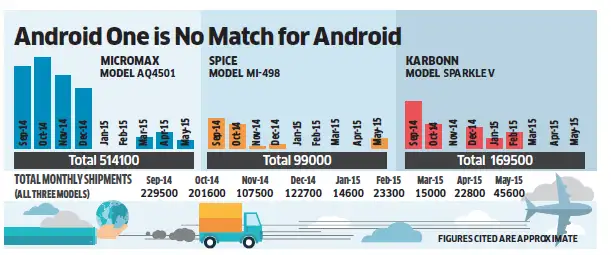
Having been hailed as a significant advance in the march toward global domination by Google's phone operating system, Android One may have to be added to the list of interesting stuff that has not really worked. Google's first set of phone making partners Micromax, Karbonn and Spice have no development road-map for the platform's next batch of devices. Some are clearing available stock at discounts, executives told ET. Intex, Lava and Xolo, which were to join the above three, no longer seem to be keen, leading some to question whether the search giant is planning to drop the Android One project altogether. 
Google insisted it's still committed to the product. "We're not backing away from the program," Caesar Sengupta, vice president of product management at Google, told ET. "We have learnt a lot from the initial round with our partners and they have learnt in terms of device availability, in channel and others. Over time, as we work with our partners, we will keep working on making sure that we do things much better." But with the products not doing too well, executives at the three partners said they weren't working on the next lot of Android One devices. 

Google unable to make a huge success of its Android One

The program was aimed at providing a uniform Android experience through multiple low-cost handset makers. That seems to have backfired it left no scope for differentiation as handset makers competed for the same customers.

Also, Google wasn't able to communicate clearly to customers the difference between an Android One device and a handset running regular in the same price range, experts said. "It seems Google itself has turned out to be the toughest competitor for Android One devices, keeping in mind the wide range of affordable android devices available in sub $100 segment in India these days," said Tarun Pathak, lead analyst at Counterpoint Research. 

The US company said it will continue to work with handset makers and introduce more phones, Sengupta said. "Within Google, we're very happy with the progress of Android One," he said. "We will continue to take a lot of learning and keep doing it better in every market that we go to. In India, when we do the next set of devices and launches, you will find us doing it better."

Analysts agreed, saying that Google needs to launch more devices under the program across various price segments for Android One to get back on track again. Close to 800,000 Android One units were shipped since the launch in September last year up to May 31 this year. This is about a third of the sub-$100 smartphones sent to India just in January-March 2015. 

Officially, Micromax said it was "committed" to the Android One platform and is still selling its Canvas A1 model. Prashant Bindal, chief executive of Spice Mobility Ltd, said, "We sold off what we had imported but nothing concrete is happening (on the next set)." 
Karbonn's Sparkle V, the Android One model that it launched at 6,399 INR, is now available for 4,798 INR on Snapdeal. Another executive at a launch partner said the company didn't have "visibility on what are next models that might get ready on Android One."  The person didn't want to be named. An executive at another of the initial partners said Android One was a "lost opportunity" and faulty execution was to blame for its performance.

A key lesson for Google was the need to make budget phones available offline as well. "Initially, people couldn't buy them in all channels something we need to address,"  Sengupta said. Poor response to launch phones has curbed enthusiasm of companies that were supposed to also start making Android One devices. ET learns Xolo and Intex have decided against joining the project while others are confused.

"Everything was finalized, the product was ready but market response was not there, so we dropped the idea,"  said Sanjay Kalirona, business head for mobile phones at Intex. A Xolo executive, who did not want to be identified, said, "There were initial talks, but we're not pursuing it anymore. More or less, it's a common proposition the scope for differentiation is very little." Apart from Intex and Micromax, the remaining firms declined to comment for this story. 


Wednesday, 30 September 2015

Android 6.0 Marshmallow; Key features and improvements

Android Marshmallow is now official! Clearly, the first devices to run the sixth iteration of Android will be the newly launched Nexus smartphones, Huawei Nexus 6P and LG Nexus 5X. In addition, the OS will be rolled out to the Nexus 5, Nexus 6, Nexus 7, Nexus 9 and Nexus Player as well.
The final version arrives after three developer preview releases to eradicate all bugs. Even though the company unveiled Android 6.0 during I/O in May this year, yesterday’s Nexus event offered some more insights and details on the new operating system.
Let’s take a quick look on what we know about Android 6.0 Marshmallow.
Now on Tap: 
Let’s begin with the standout feature for Android 6.0 Marshmallow. The new Google Now on Tap is a predictive assistant which will take on Google Now. This feature will allow users to get useful information on anything currently running on the phone.
One will have to press and hold the home button while inside of any app, and Google Now will read the screen, look for anything interesting and then return the information via a popup box on the bottom screen.
This feature may turn out to be a hit with users, as it turns out to be an incredible and convenient feature. This feature will be incorporated in future Android versions as well.
App Permissions:
The App Permissions got a major overhaul and Google will allow users to decide which permissions they want to allow or revoke, based on when those particular functions are used. Unlike the current implementation, Android Marshmallow users will get notifications asking for permissions only when they are using a particular function in an app.
Google has identified eight parameters including location, camera, contacts and so on, to help you give permissions for these. Also, app updates will also not ask you for permissions off the bat, unless you are using a feature which needs you to grant that particular app some permission.
Better web experience with Chrome Custom tabs:
The web browsing experience with the Chrome browser also gets a shot in the arm. Chrome Custom tabs, a new feature, that will let you include web-views within a particular app, without the need to switch to the Chrome browser on your phone. The Chrome browser will run atop your app (in case you click on any link within the app).
Features such as automatic sign-in, saved passwords, autofill will work on the apps seamlessly. Also the Chrome Custom tab will take up the colours and fonts of the app it is being opened within, to make it seem like a seamless experience.
Android Pay:
This feature will let you make your payments using near-field communication (NFC) and host card emulation techniques for tap-to-pay services. You just need to unlock your phone, keep it near an NFC terminal and your payment is done, without opening any app. As of this month, Android Pay has been rolled out in more than 1 million locations in the United States
According to Google, Android Pay will be pre-installed on AT&T, Verizon and T-Mobile devices and will be accepted in around 700,000 stores in the US which accept contact-less payment. Android Pay will replace the Google Wallet app and will be used to make in-app payments provided developers integrate Pay into their apps.
Fingerprint Support:
Android M will standardise the fingerprint sensor support and it is working with various phones to make a standard API to go with their sensors. You can use your fingerprint to authorise an Android Pay transaction, unlock your device or make Play Store purchases.
Doze:
In an attempt to boost your smartphone battery, Android Marshmallow will feature a smart power-managing feature called Doze. This feature works by letting system optimally manage the background processes. The new OS keeps a tab on the motion detection sensor and if there is no activity for a long time, the system shuts down some processes.
According to the company, the Nexus 9 was put to test and the battery lasted twice as longer in standby mode by using lesser background features.
USB Type-C:
Android Marshmallow will also support USB Type-C for charging. Considering USB Type-C is has a bi-directional port, you can use this port to either charge the phone as well as charge another device. With USB Type-C, devices can be charged faster and this makes it a more versatile charging technique.
Miscellaneous:
1. Apart from these main features, some of the other improvements include a better implementation of Copy/Paste function. So in Android  Marshmallow, you will get a floating toolbar just above your selection with the Cut, Copy, Paste options. Direct Share feature will let you share images or links with your most frequently shared contacts or apps, using a single click.
2. Volume controls will also give you a drop-down menu, a feature that is common in the Cyanogen OS.
3. In addition, the new Marshmallow will offer a new app drawer which will now scroll vertically instead of horizontally. Top of the menu will also offer the four most recently used apps.
4. Google also introduced a new RAM Manager which will aim at providing users with a more concrete information regarding the RAM usage of apps. This feature will offer more deeper insights on app demands along with an overall explanation of what effect they have on the device.

Friday, 30 October 2015

Google plans to merge Chrome OS and Android

Google plans to merge Chrome OS, the operating system that runs on Chromebooks, and Android, according to a new report in The Wall Street Journal. Chromebooks would get a new name, which has not been determined, according to the Journal, and an Android based operating system.
Citing "people familiar with the matter," the report says Google engineers have been working on the project for the past two years. Once completed, Google will retire the Chromebook name and the devices will instead run a version of Android. The name of Google's Chrome browser will remain unchanged.
This new operating system will also run on PCs, according to the report, so people will be able to access Google's Play Store and other content offerings from laptops and other computers.
It's not clear exactly when the new version of Android may launch but the report said Google would not officially reveal it until 2017, though the company may preview an early version sometime in 2016.
This is far from the first time we've heard rumors that Google plans to combine Chrome OS and Android. Though Google has yet to officially confirm the news a Google spokesperson declined to comment on The Wall Street Journal story the company has taken steps to bridge the gap between Chrome OS and Android.
Last year, the company began rolling out Android apps that could run on Chromebooks and later opened it up to any Android developer. Additionally, Android users who also have Chromebooks are able to unlock their devices using their smartphones.
Google showed off a new tablet/laptop hybrid, the Pixel C, last month. The yet-to-be-released device, was designed by the same team behind Google's flagship Pixel Chromebook, even though the Pixel C runs Android. The fact that Google's team behind one of the most premium Chromebooks designed a new Android tablet could be seen as a sign the company is changing the way they think about Android and Chrome.
Though Chromebooks are massively popular in schools, the Chrome-based machines aren't nearly as popular Android devices. Re-branding these devices, which tend to be cheaper than most laptops and premium tablets, under the Android name could stand to attract more users to the platform.

Thursday, 4 June 2015

How To Make Android look like iPHONE 6 iOS 8 (No Root Required)


The beauty of android is it can mimic any user interface. iOS user interface the most requested UI for android. In this post i will provide all apps that will turn your android phone to look like iPhone 6 iOS 8. You just need an android phone With root.


Installation Guide:
First you have To download every thing above In your Computer or on your android.
2.Then you have to put every downloaded file on to your phone.
3.Install every thing on your mobile.
Then click your Home Button A little Pop-up will come Which will show which launcher.-Select ilauncher and select Always.
4.then set your phone as you wish by going into settings of every app shown on your list which you have installed just now..
5.when every app is set you can hold on a app and when they start freezing you can go on every app and click on the app icon and you can change the app [select this app as] ,you can change the app icon [change icon], or you can change the title of the app [change the app title].
There you go when everything is set you now have iOS 7 On your Android Device.. 


tags:
Android Tutorial
Android Tips
Android Apps

Tuesday, 18 August 2015

Android “M” Is Now Officially Android Marshmallow

Google’s Android M is Marshmallow

After a month of running the preview version as Android M, Google has finally unveiled the official name for its new operating system and it will called Marshmallow. Google had been hinting at Marshmallow going by the teaser music video it released yesterday.
Googler Alex Ruiz just posted a picture of the statue over at Building 43 (the Android building) at Google HQ in Mountain View.

About Marshmallow:

Marshmallow is a sugar based candy that, in its modern form, typically consists of sugar, whipped to a spongy consistency, molded into small cylindrical pieces, and coated with cornstarch. Some marshmallow recipes have eggs in it.

About Android M:

Android Marshmallow is an release of the Android mobile operating system which will be available for Android users by September 2015. Android M was first unveiled at Google I/O on May 28, 2015, with the Android “M” developer preview was released on May 28, 2015, for the Nexus 5 and Nexus 6 phones, the Nexus 9 tablet, and the Nexus Player set-top box, under the build number MPZ44Q. The Developer Preview 3 was released August 17, 2015 for Nexus 5, Nexus 6, Nexus 9 and Nexus Player (MPA44G).
Along with finalizing the name, Google has also released the finished version of its Android 6.0 SDK and a third (and final) software preview that can be loaded on Nexus devices.
“The preview images are near final but they are not intended for consumer use,” Google said in a blog post. “Remember that when Android 6.0 Marshmallow launches to the public later this fall, you’ll need to manually re-flash your device to a factory image to continue to receive consumer OTA updates for your Nexus device.”

Thursday, 19 November 2015

Android Smartwatches will receive Android 6.0 Marshmallow update soon

Google has confirmed that all Android Wear wearables will receive Android 6.0 Marshmallow along with the announcement that the company has rolled out API 23 SDK for Android Wear devices based on the new Android 6.0 Marshmallow too.
The first smartwatch to run Android 6.0 Marshmallow (API 23) for Android Wear will be the LG Watch Urbane 2nd Edition. Other Android-based smartwatches will receive the OTA update for API 23 based on Android Marshmallow in the ‘coming months’. At the moment, all current Android Wear devices run API 22.
Developer Advocate at Google Wayne Piekarski mentioned via a Google+ post that, “I am particularly excited about the round and notround resource qualifier, so you can express your layouts for all watch types in a much simpler way.”
In terms of features, API 23 introduces a new runtime permissions model for both phones and watches. The new permissions model allows users to pick and choose which permissions to grant apps at the time of use. In addition, new permissions settings allow users to turn on and off app permissions at any time.
The LG Watch Urbane 2nd Edition LTE will also be the first watch to include speaker support. Users can play audio files using the same APIs that are available on Android phones, such as AudioTrack, MediaPlayer, and ExoPlayer.
In addition to the resource qualifiers, there’s support for external speakers as well. The API 23 SDK also offers Intel x86 support. The new TAG Heuer Connected, along with other upcoming Android Wear watches, is based on Intel x86 processors.

Friday, 5 June 2015

How to Root Nexus 6, Unlock Bootloader And Install Custom Recovery (All-In-One Beginner's Guide)


------------------------------------------------------------------------------------------------------------
Step 1: Installing The Necessary Desktop Tools

ADB and Fastboot Installation
  1. Download the full Android SDK from here (scroll to the bottom of the page>DOWNLOAD FOR OTHER PLATFORMS>SDK Tools Only).                                                                                               
  2. Extract the zip and place the android-sdk-windows folder on your desktop.                                          
  3. **If you chose to download the slimmed sdk skip to step 5**                                                               
  4. Only if you downloaded the full sdk: Go into the android-sdk-windows folder and run SDK Manager.exe. Install the following packages (there are a total of 4 packages):                                     
  5. - Tools > Android SDK Tools, Android SDK Platform-tools                                                                 
  6. - Extras > Android Support Library, Google USB Driver                                                                      
  7. Only if you downloaded the full sdk: Go back into the android-sdk-windows directory, and you should see a new folder named platform-tools. If you don't see this new folder, repeat the step above.                                                                                                                                                   
  8. To confirm that it is indeed working, open a command prompt window and enter the following commands:
command line:
cd Desktop/android-sdk-windows/platform-tools
adb version

If it displays "Android Debug Bridge version x.x.xx" it is working. If it is gives an error saying thatadb is not a recognized command, it has not been successful. Carefully repeat the steps above if this is the case. Close the command prompt window when you are done.
------------------------------------------------------------------------------------------------------------

    ------------------------------------------------------------------------------------------------------------
    Step2: Unlock, Root & Custom Recovery


    >>>>>>Before you begin, make sure your N6 has USB Debugging Mode switched on<<<<<<
    Before continuing, users must enable Developer Options in the devices settings and select the OEM Unlock option. To do so:


    • Go into Settings
    • Under About Phone, you'll be able to locate your Build Number
    • Tap Build Number until you are notified that you have activated Developer options
    • Go into Developer Options, ensure it is enabled and check the Enable OEM Unlock box
    • While in Developer Options, ensure the USB Debugging box is checked
    ------------------------------------------------------------------------------------------------------------

    Unlock The Bootloader:

    • Turn the phone off. Then boot it into the bootloader/fastboot mode by holding volume down + power.
    • Plug the phone into your PC, then open a command prompt window and type:
      command line:
      cd Desktop/android-sdk-windows/platform-tools
      command line:
      fastboot devices
      This command will list the connected devices. If your phones serial number shows up you are good to go and may continue. If the phone is NOT listed this indicates that your drivers are not installed correctly. In order for you to continue you must fix your drivers so that your phone is listed underfastboot devices.
    • If the phone has been recognized by the command above, proceed to unlocking the bootloaderwith the following command:
      Remember that this step will wipe EVERYTHING off the phone
      command line:
      fastboot oem unlock
      On the phone a screen should pop up asking whether or not you would like to unlock the bootloader. Use the volume rockers to highlight "Yes" then press power to confirm the action.
    • After the above command has finished executing, run the following (DO NOT skip this step, it is more important than you think):
      command line:
      fastboot reboot
      The phone will reboot. Next you will be presented with a screen containing an android logo and a progress bar (this may take up to ten minutes to complete). Wait until the phone has fully booted up into android, then proceed onto the next section of the guide.
    • Close the command prompt window.

    ------------------------------------------------------------------------------------------------------------
    Obtain Root:

    • Extract the ZIP file
    • Boot your device in bootloader/fastboot mode. Usually this can be done by turning your device off, then holding VolUp+VolDown+Power to turn it on.
    • Connect your device to your computer using USB

    - Windows:
    --- Run root-windows.bat

    - Linux
    --- chmod +x root-linux.sh
    --- Run root-linux.sh

    - Mac OS X
    --- chmod +x root-mac.sh
    --- Run root-mac.sh

    Follow the on-screen instructions - watch both the computer and the device!
    ------------------------------------------------------------------------------------------------------------


    ------------------------------------------------------------------------------------------------------------
    Installing A Custom Recovery:

    Go HERE to download the latest TWRP recovery for the Nexus 6.

    • Turn the phone off. Then boot it into the bootloader/fastboot mode by holding volume down + power.
    • Rename the recovery file that you downloaded above to recovery.img. Remember that you should place the file in the platform-tools folder inside of the android-sdk-windows folder on your desktop.
    • Open command prompt and run the following commands:
      command line:
      cd Desktop/android-sdk-windows/platform-tools
      command line:
      fastboot flash recovery recovery.img
    • On the phone, use the volume buttons to scroll onto "Restart Bootloader" and hit powerto select it. After the bootloader reloads, use the volume buttons to scroll onto "Recovery Mode" and power to select it. You should then be greeted with your newly installed custom recovery.
    • Close the command prompt window.
    ------------------------------------------------------------------------------------------------------------